Screen vs. Print: The Resolution Problem Nobody Explains Properly
Here's a situation I've seen more times than I can count. Someone designs something on their laptop, it looks great on screen, they send it to a printer, and the result comes back soft and pixelated. They blame the printer. They blame the PDF export. They rarely think to question the image resolution — but that's almost always the actual problem.
Understanding why this happens is genuinely simple once you know one thing: screen resolution and print resolution are completely different measurements.
DPI: The Number That Determines Everything
DPI stands for dots per inch — how many pixels or ink dots are packed into each inch of the image. Screens typically display at 72 to 96 DPI. Print needs around 300 DPI for a sharp result. A professional print house often wants even higher.
So when you take a 1920px wide image and print it at 300 DPI, it comes out at about 6.4 inches wide. If you try to stretch it to fill an A4 page — around 8.3 inches — the printer has to invent pixels it doesn't have, and the result is soft and pixelated.
An image that looks perfectly sharp filling your laptop screen can be nowhere near print-ready. The pixel count you need for screen and for print are completely different, and this catches people off guard constantly.
How to Tell If Your Image Has Enough Resolution
The math is straightforward. Divide your image width in pixels by 300 (the DPI you're printing at). A 2400px wide image at 300 DPI gives you an 8-inch wide print — sharp and clean. If your image is only 800px wide, that's about 2.6 inches at 300 DPI. Stretching it to a full A4 page will look terrible.
Most photos from modern smartphones are actually fine for standard print sizes. The problem comes from compressed web images, old photos, images downloaded from websites, or photos that have been resized down at some point.
How AI Upscaling Fixes the Problem
If you have an image that's too low-resolution for print, your options used to be: reshoot it, accept the blurry result, or use an AI upscaler. Increasingly, the upscaler is the right answer.
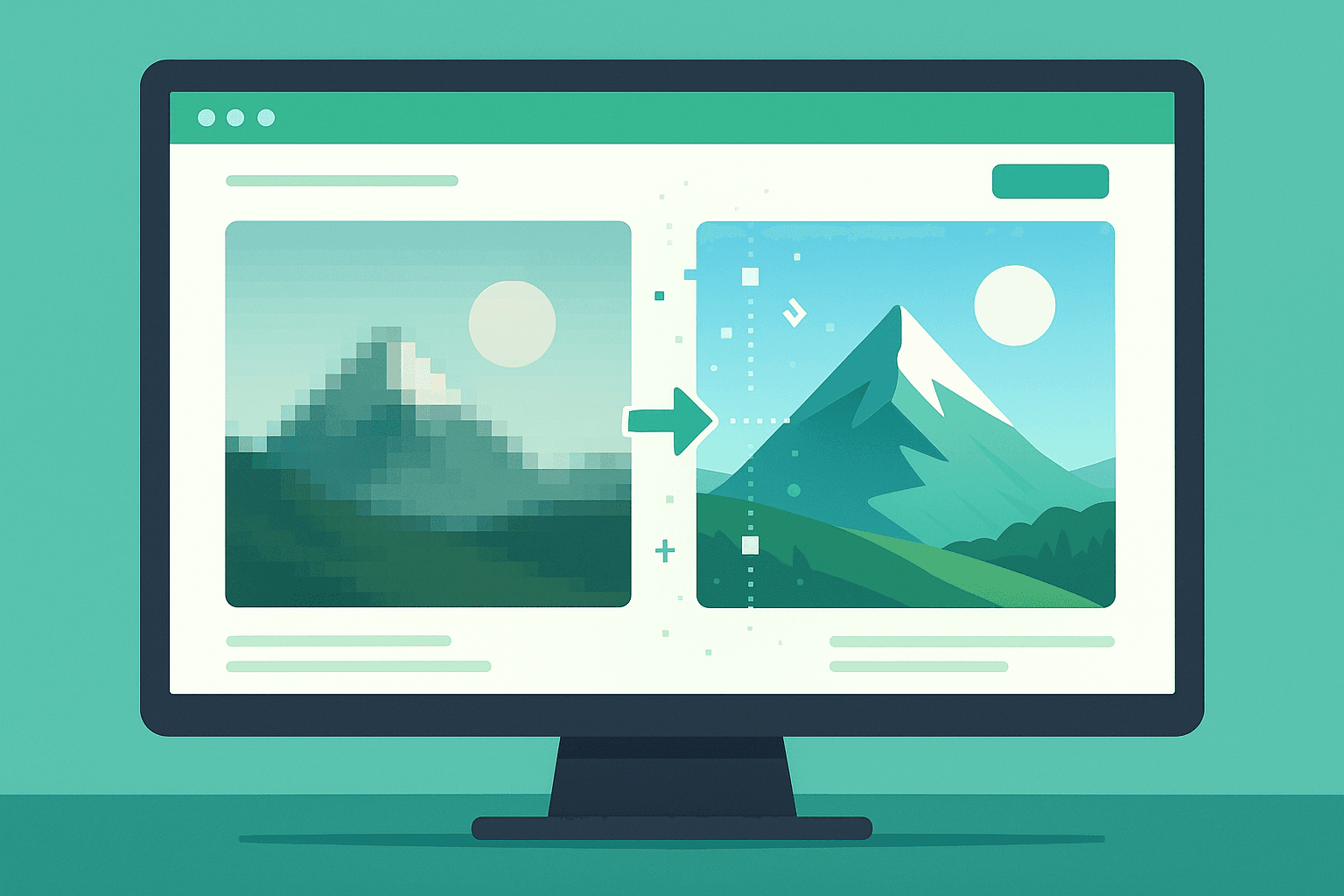
Our AI Image Upscaler increases the pixel dimensions of an image while using machine learning to generate the additional detail — not just stretch what's already there. A 4x upscale takes a 600px image to 2400px with genuinely sharper edges and textures compared to standard resizing. That transforms something that wasn't usable for print into something that is.
A Quick Workflow Before Any Print Job
Check your image dimensions first. In Windows, right-click the file and check Properties → Details. On Mac, open in Preview and check Tools → Show Inspector. Note the pixel dimensions.
Calculate your print size. Divide width in pixels by 300 to get the maximum width in inches at standard print quality. If that's smaller than your intended output size, you need to upscale.
Upscale before sending to print. Run the image through the AI Upscaler at the appropriate scale factor, download the result, and use that for your print file.
Doing this check before you send anything to print saves you from receiving a blurry result and having to reprint — which costs both time and money every single time it happens.
The Most Common Situations Where This Comes Up
Flyers and posters using web images. Images sourced from websites are almost always 72 DPI — screen optimized. Always upscale before using in any print project.
Old scanned photos. Older scanners often defaulted to 72 or 96 DPI. If you have scans from 10+ years ago, they may look fine on screen and look terrible for print.
Product images for packaging or labels. Supplier photos are rarely at print resolution. Upscale them before sending files to a packaging printer and you'll avoid an expensive reprint conversation.
The fix takes about 30 seconds. Try the AI Upscaler on any image you're about to send to print.