Why Normal Resizing Makes Images Look Worse
Here's something that trips people up all the time. You have a small image — say 400x300 pixels — and you need it at 1600x1200. You open it in an editor, drag the handles, and make it bigger. The image looks blurry. You try sharpening it. Still blurry, now with weird artifacts. You end up publishing something that looks like it was photographed through a frosted window.
This happens because traditional resizing is mathematically simple. The software takes the pixels it has and stretches them. To fill in the new pixels it creates between the old ones, it averages the surrounding colors. The result is technically larger but visually soft — because no new information was added, just the old information spread thinner.
AI upscaling works completely differently, and once you understand why, the results stop feeling like magic and start making obvious sense.
How AI Upscaling Actually Works
The model behind our AI Image Upscaler was trained on millions of image pairs — a high-resolution original and its downscaled version. Over time, it learned to recognize patterns: what a sharp edge looks like, how hair textures work, what a fabric weave should look like at a higher resolution, how building details resolve when you zoom in.
When you upload a photo, the AI doesn't just stretch it. It analyzes the content — recognizes that this region is a face, this area is a building, this part is grass — and generates the additional pixels based on what it knows those things look like at higher resolution. It's predicting detail rather than inventing blur.
This is why AI upscaling consistently produces sharper, more natural-looking results than any manual resizing method. The information was always implied in the original image. The AI just fills it in intelligently.
Step-by-Step: How to Upscale an Image
Step 1 — Open the tool. Go to the AI Image Upscaler. No account needed, works in any modern browser.
Step 2 — Upload your image. Click the upload area or drag and drop directly onto the page. You can also paste a direct image URL if the photo is already hosted online. JPEG and PNG formats work best.
Step 3 — Choose your scale factor. This is how much you want to enlarge the image. 2x doubles the width and height (so a 500px image becomes 1000px). 4x quadruples it. For most use cases, 2x or 4x hits the sweet spot between quality improvement and processing time.
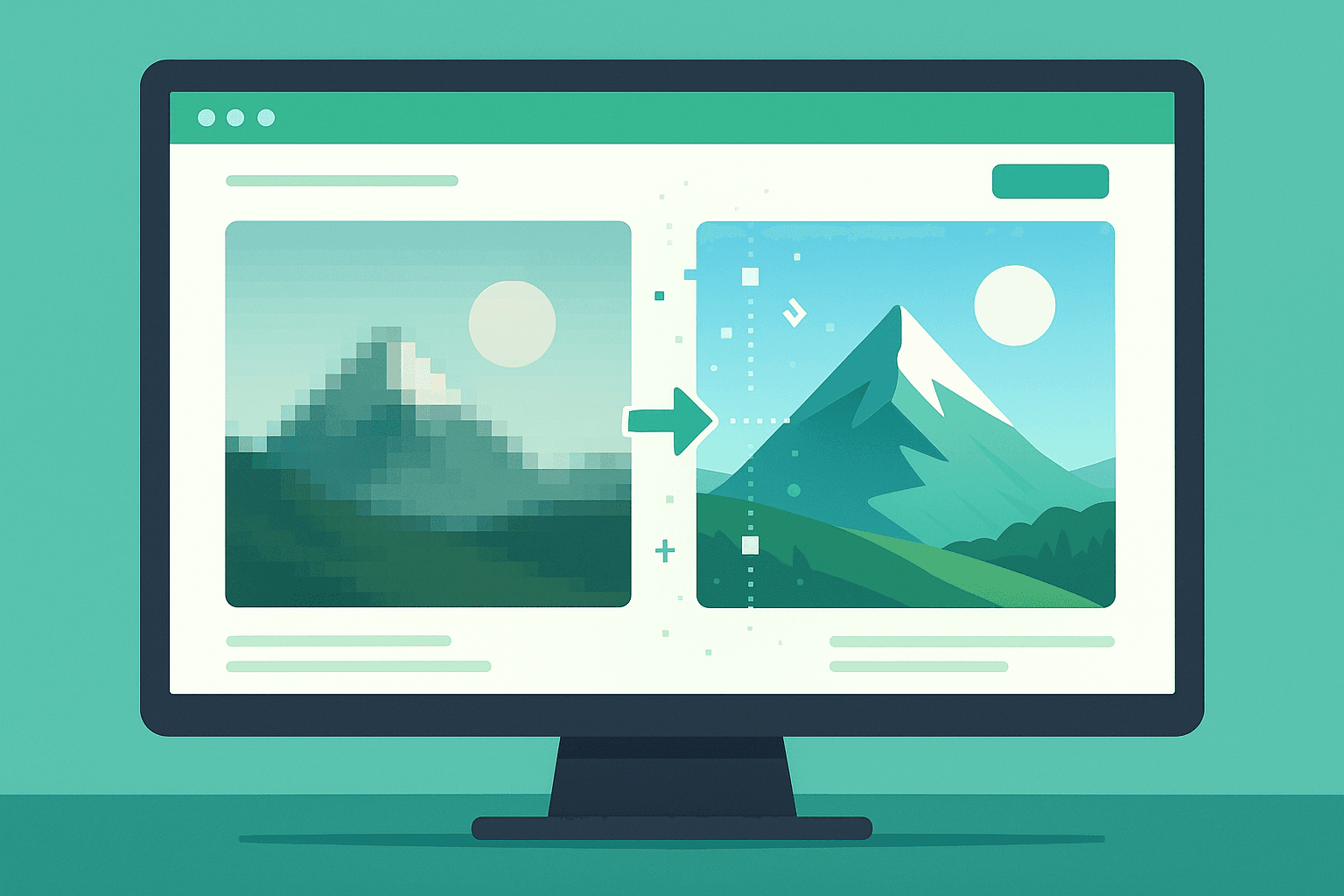
Step 4 — Process and compare. Click enhance and wait a few seconds. The before/after preview lets you drag a slider to compare the original and the upscaled version side by side. You can see exactly what the AI added.
Step 5 — Download. Hit download and you have your high-resolution image. No watermarks, no compression added, no subscription required.
The Situations Where This Genuinely Helps
Old photos from early digital cameras or phones. If you've ever tried to print a photo from a 2005 phone camera, you know the pain. Those photos are often 640x480 or smaller. Upscaling with AI can bring them up to a printable resolution while recovering real detail — edges, facial features, textures — that standard resizing just muddies.
Product images from suppliers. If you run an e-commerce store, you know that supplier images are often small, highly compressed, and nowhere near the resolution marketplaces like Amazon or Etsy prefer. Upscaling these before uploading makes listings look significantly more professional. I've personally seen conversion rate improvements just from having sharper product photos.
Thumbnails or screenshots you need larger. Screenshots taken on non-retina displays, old website logos, forum avatars that need to be used at a larger size — these all benefit from AI upscaling in ways that traditional resizing simply cannot match.
Preparing images for print. Screen resolution is 72–96 DPI. Print needs 300 DPI. A photo that looks fine on screen is often far too low-resolution to print well. Upscaling before sending to a printer prevents that soft, pixelated print result.
Restoring or archiving old images. Family photos that were scanned or photographed from physical prints often come in at low resolution. Upscaling can recover a lot of the lost detail and make these worth framing or printing properly.
Honest Limitations to Know About
AI upscaling is impressive, but it's not unlimited. The model is predicting missing detail based on patterns it learned during training. If the original image is extremely low resolution — we're talking 50x50 pixels — there isn't enough information for it to work with, and the result will reflect that.
Images with heavy JPEG compression artifacts — those blocky, smeared areas that appear when a JPEG has been over-compressed — can also be tricky. The AI will usually smooth them out rather than add artifacts, but if the compression damage is severe enough, no upscaler can fully recover what was discarded.
For best results, always start with the highest quality version of the image you have access to.
2x vs 4x: Which Should You Use?
If your image is already reasonably sized — say 800px or larger — and you just need it a bit sharper or slightly bigger, 2x is usually enough and processes faster. If you're working with a genuinely small image, like a supplier thumbnail or an old phone photo, 4x gives you a lot more room to work with. My personal default is 2x unless I have a specific reason to go larger.
Frequently Asked Questions
Will the upscaled image look fake or over-processed? Good AI upscaling should be invisible. The goal is to look like a naturally sharp photo, not like it's been over-sharpened or filtered.
Does it work on illustrations and graphic design files? Yes — it handles illustrations well, often cleaning up edges and fine lines better than you might expect.
Is there a daily limit? No. The tool is free with no usage cap.
Ready to try it? Upload a photo here and see the difference for yourself.