The Tool Most People Underestimate
Most people find image extraction tools when they need to download a bunch of images from a webpage and can't be bothered right-clicking each one. That alone makes it useful. But once you use it regularly, you start finding situations where it saves you time you didn't even realize you were wasting.
Here are five use cases I actually rely on, beyond the obvious.
1. Auditing Your Own Website's Images
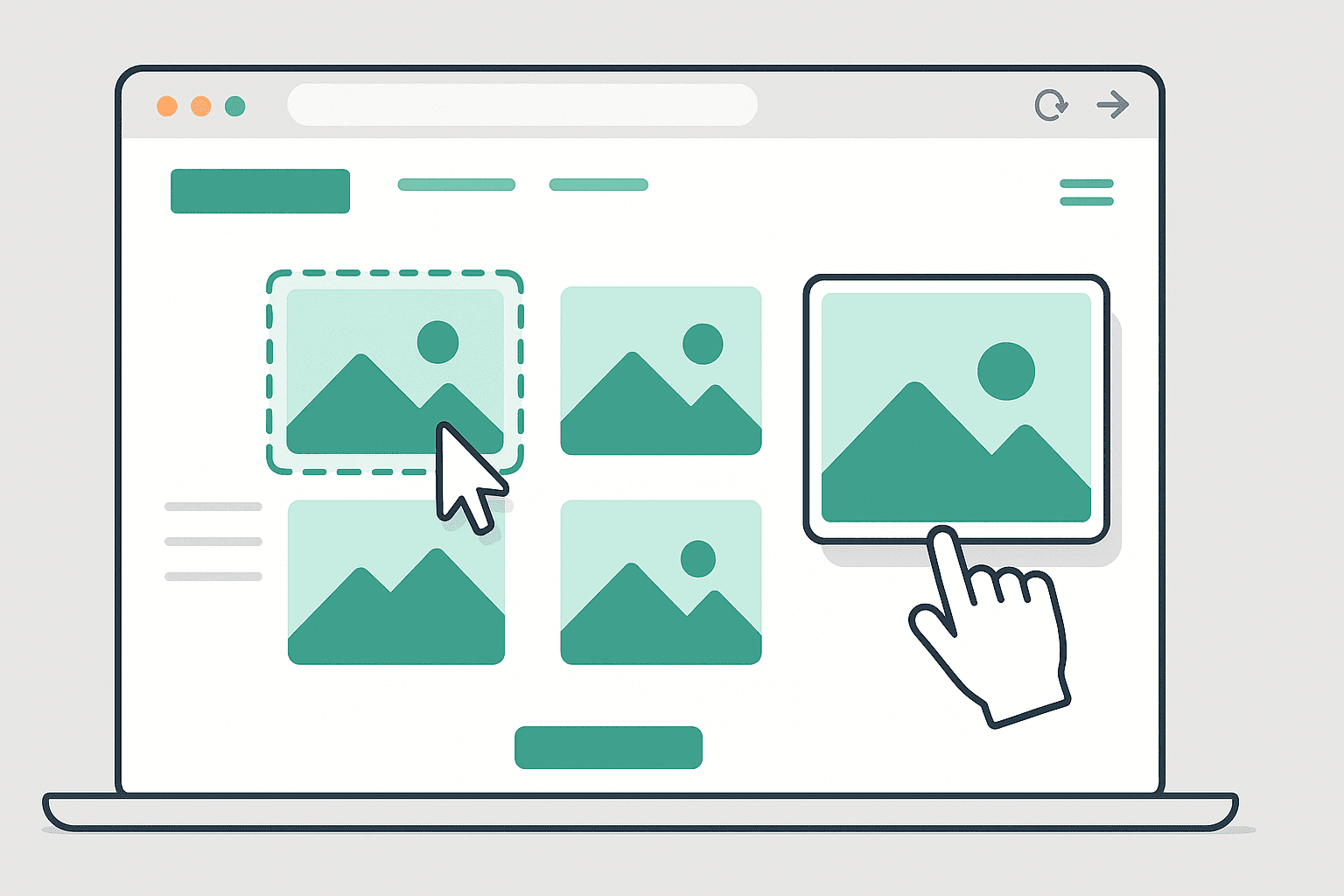
Run your own site through the Image Extractor and you'll immediately see something you probably haven't looked at in a while: every image file your site is serving, their formats, and a rough sense of their sizes.
This is genuinely useful for web performance work. Large uncompressed images are one of the most common reasons websites load slowly. Seeing everything in one gallery — rather than digging through a CMS or file manager — makes it easy to identify which ones need compressing or replacing. You'll also spot broken images and outdated visuals you forgot were still live.
2. Competitive Visual Research
If you're working on a brand or any visual project, understanding how others in your space use imagery is real research. What photography style are they using? Lifestyle shots or product-only images? Illustrations or photos? What's the color palette?
Instead of manually saving screenshots, run a competitor's URL through the extractor and get a complete view of their visual assets in seconds. You build something to analyze and reference without any manual busywork.
3. Building a Visual Swipe File
A swipe file is a personal archive of examples you find well done — design layouts, product photography, landing page visuals. Keeping one is useful for the moments when you need inspiration or want to reference how a problem has been solved before.
With an image extractor, building a swipe file becomes effortless. Find a site with excellent visual work, run it through the extractor, download what you want. You can build a proper reference library in an afternoon instead of weeks of sporadic screenshotting.
4. Website Migration Asset Recovery
Anyone who has ever migrated a website knows image assets are one of the most tedious parts. Tracking down every image, downloading it, re-uploading to the new platform — slow and error-prone when done manually.
Running each page of the old site through the image extractor gives you a complete set of all image files without needing server access or FTP. Especially useful if you're migrating a client's site and don't have direct access to the backend.
5. Finding Larger Versions of Images
Sometimes a website displays a small version of an image on the page but has a larger version hosted at the source URL. When you extract the images, you often find the full-resolution file the page was pointing to — even if the display was cropped or thumbnailed for layout purposes.
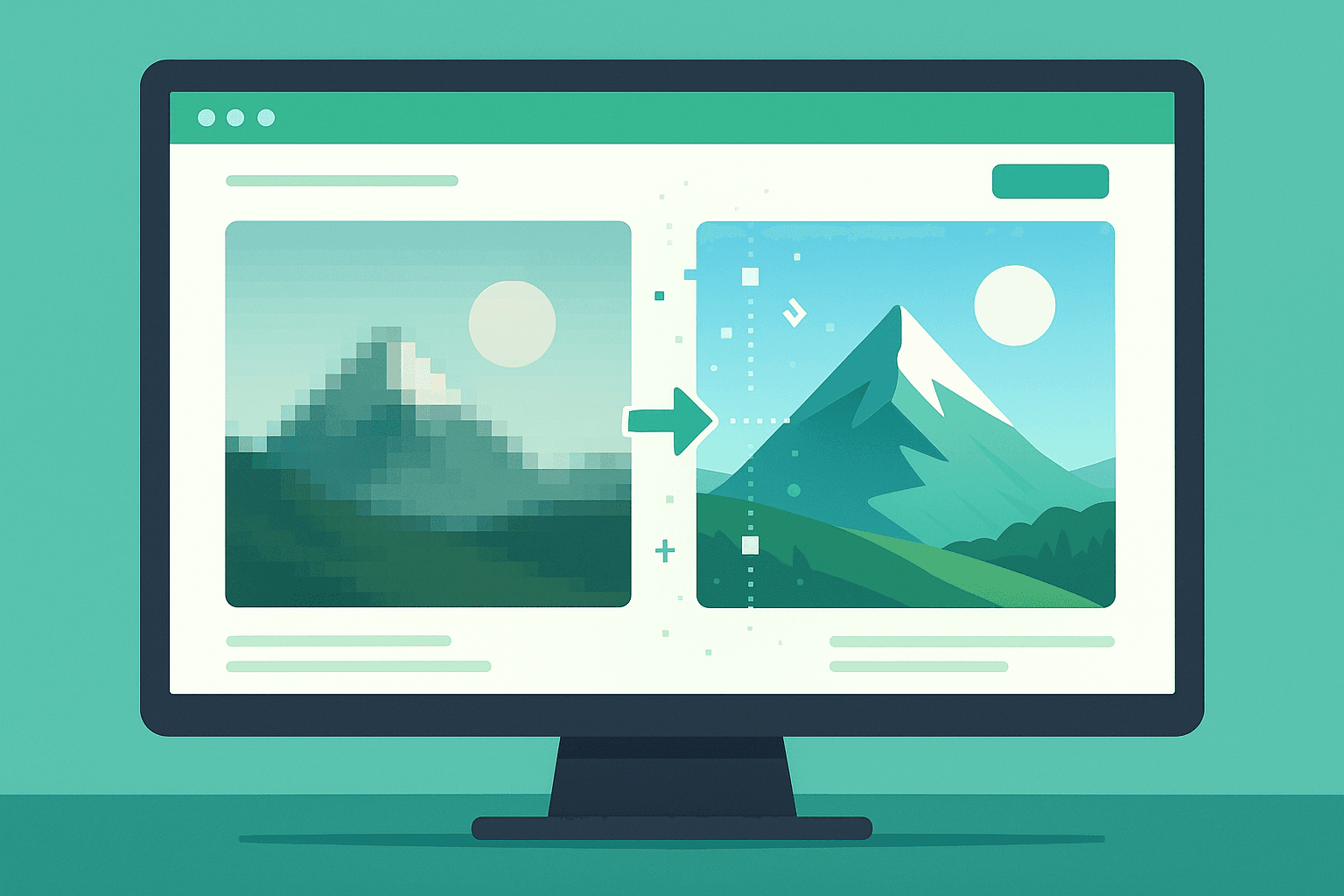
Combined with the AI Image Upscaler, this is a solid workflow: extract the best available version of an image, then upscale it further if you need more resolution. Both tools are free, no account needed, entirely browser-based.
The Combination That Really Works
Honestly, the most powerful workflow I've found is using the Image Extractor and AI Upscaler together. Extract images from a source, identify the ones you want, and if any of them are smaller than you need, run them through the upscaler. You go from finding images to having a high-resolution, usable asset in under two minutes.
Try the Image Extractor here and see which of these fits your workflow.