I Used to Do This the Hard Way
I'm not proud of it, but I used to spend 20–30 minutes manually saving images from websites. Right-click, save as, rename, repeat. Over and over. If I needed images from five pages for a mood board or a design reference, that was easily an hour of my afternoon gone on something that should take five minutes.
Then I started using an image extractor, and I genuinely cannot believe I did it the old way for so long. Paste a URL, see every image on the page in a gallery, download what you need. Done. The whole thing takes under a minute.
Here's exactly how it works and when to use it.
What Does an Image Extractor Actually Do?
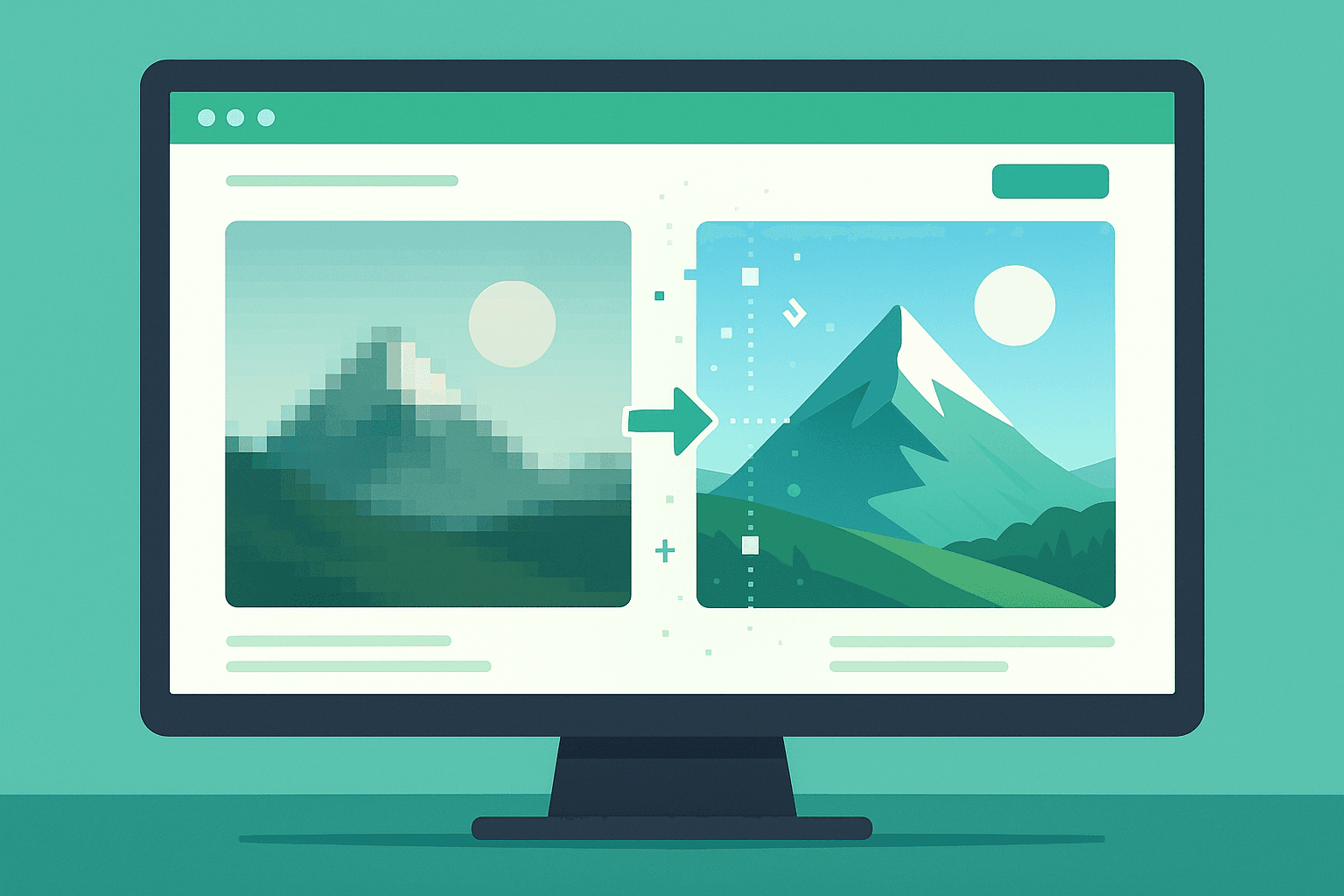
When you visit a webpage, your browser loads dozens of image files in the background — product photos, banners, icons, thumbnails, SVG logos. An image extractor reads the page source and collects every one of those image files, then presents them in a clean gallery so you can see and download them without touching a single right-click menu.
Our Image Extractor supports JPEG, PNG, GIF, and SVG. You can filter by format, sort by file size or filename, and download images individually or all at once. It works on most publicly accessible websites — blogs, e-commerce stores, news sites, portfolios, you name it.
Step-by-Step: How to Extract Images from Any Website
Step 1 — Copy the URL. Go to the webpage you want and copy the full address from your browser bar. Make sure it's a publicly accessible page — anything that requires you to log in won't work.
Step 2 — Paste it into the extractor. Open the Image Extractor, paste the URL into the input field, and hit Extract.
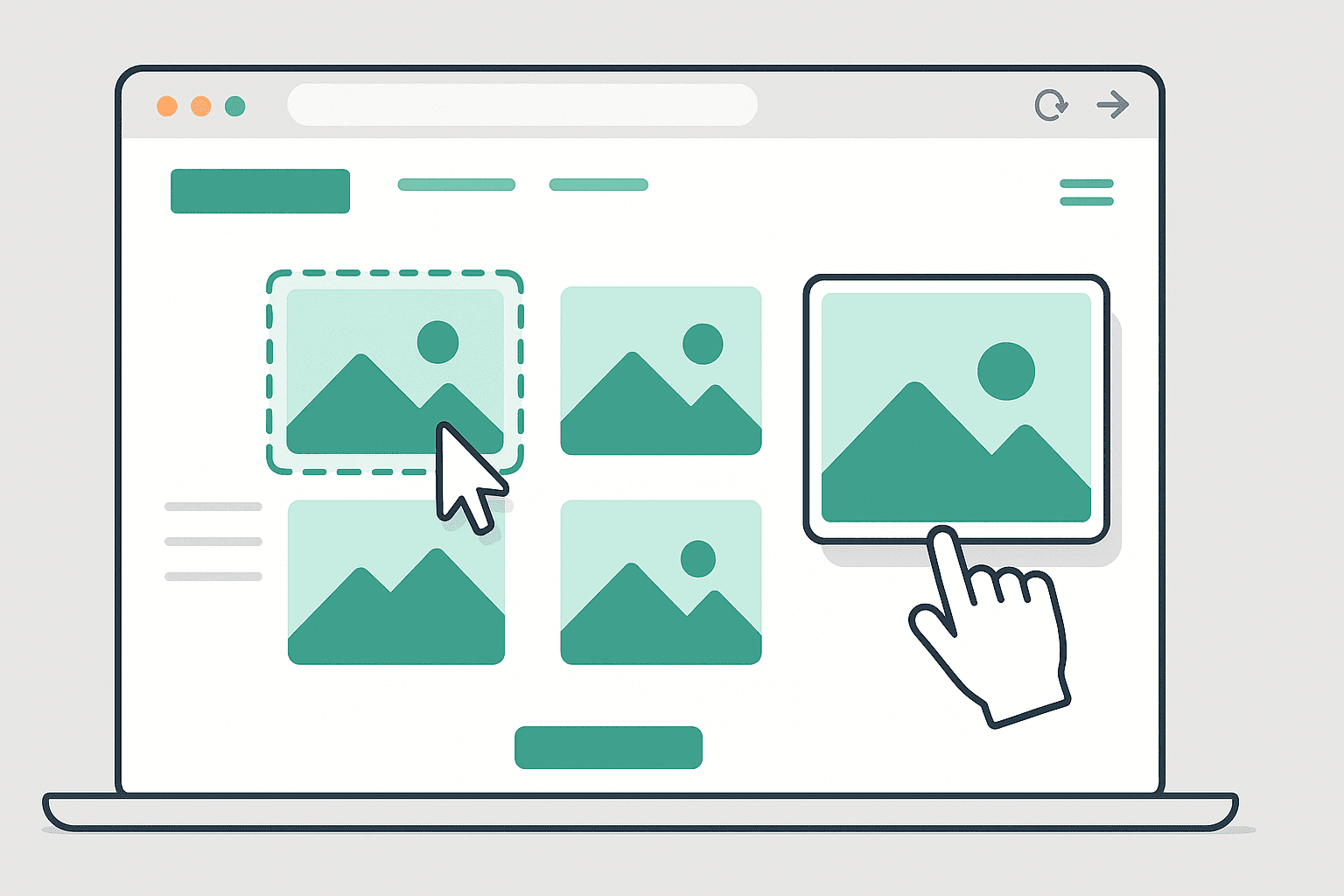
Step 3 — Browse the results. Within a few seconds, you'll see a full gallery of every image on that page. Large images, small images, icons, everything. This is where the filtering comes in handy — if you only want high-resolution photos, filter by JPEG and sort by file size to find the biggest ones first.
Step 4 — Download what you need. Click any image to download it directly. If you want everything, grab the bulk download option and get a zip file of the whole lot.
That's genuinely it. No software to install, no account to create, no limit on how many images you can grab.
Real Situations Where This Saves You Serious Time
Building a mood board or design reference. I do this constantly. When I'm starting a new project and want to research how competitors or inspiration brands use imagery, I'll pull images from five or six websites in the time it used to take me to manually save from one. You build a complete visual library in minutes.
Downloading your own website's assets. This sounds obvious but it's genuinely useful if you're migrating a site, doing a backup, or handing a project off to someone else. Run your own URL through the extractor and get every image file in one shot instead of digging through a CMS or FTP client.
Researching what images a page is loading. As someone who does web work, I sometimes need to audit what image assets a client's site is actually loading for performance or SEO reasons. The extractor gives you a full inventory instantly — file names, formats, rough dimensions — without opening dev tools.
Saving images for personal reference. If you're a student collecting visual examples for a project, a blogger pulling together research, or a content creator building a swipe file, this is so much faster than screenshotting or right-clicking one by one.
What It Won't Work On
I want to be straight with you here because I've seen people get frustrated when they hit these walls. Pages that require a login won't work — social media profiles, paid content, anything behind a signup wall. Sites that load images dynamically through heavy JavaScript after the page loads may also not capture everything.
For standard websites — which covers the vast majority of what most people need — it works great.
A Quick Note on Copyright
Being able to download an image doesn't automatically mean you have the right to use it. Most images you find online are protected by copyright. This tool is perfect for personal research, design references, auditing your own site, or downloading images you already have permission to use. Using someone else's images commercially without a license is a separate issue — always check before you publish.
Frequently Asked Questions
Does it work on Instagram or Pinterest? No — social media platforms actively block scraping tools. This is for standard public websites.
Can I download SVG files? Yes. SVGs are included in the results and can be filtered and downloaded like any other format.
Is there a limit on how many images I can extract? No limit. Whether a page has 5 images or 500, you can download all of them.
Does the tool store my data? No. We don't log URLs you enter or save any session data.